The whole story of an order in one place
A name and a customer are enough to create an order; you fill in the other details later. Appointments, people, attachments, internal notes and a record of every change then stay in one place.
Even after half a year one screen shows what was agreed and when it changed.
A timeline that keeps the context
You write operational notes in the order in plain language. Next to them the same timeline records the automatic history: a status change, a moved appointment, an added technician assignment or a deleted attachment.
- Manual notes and automatic records are in one chronological stream, visually distinguished.
- The history also remembers the status names of the time, so an old record makes sense even after renaming.
- An order is not deleted but archived; the history stays searchable.
Photos and documents right on the order
An administrator can upload photos, PDF reports, diagrams or purchase orders to an order. ServisBook reduces photos from the phone before upload, so they do not take up unnecessary space.
- Photos have previews, other files are downloaded with one click.
- PDFs belong among attachments too: a report, a diagram, a purchase order.
- All documents are tied to the order, not to one person's e-mail.
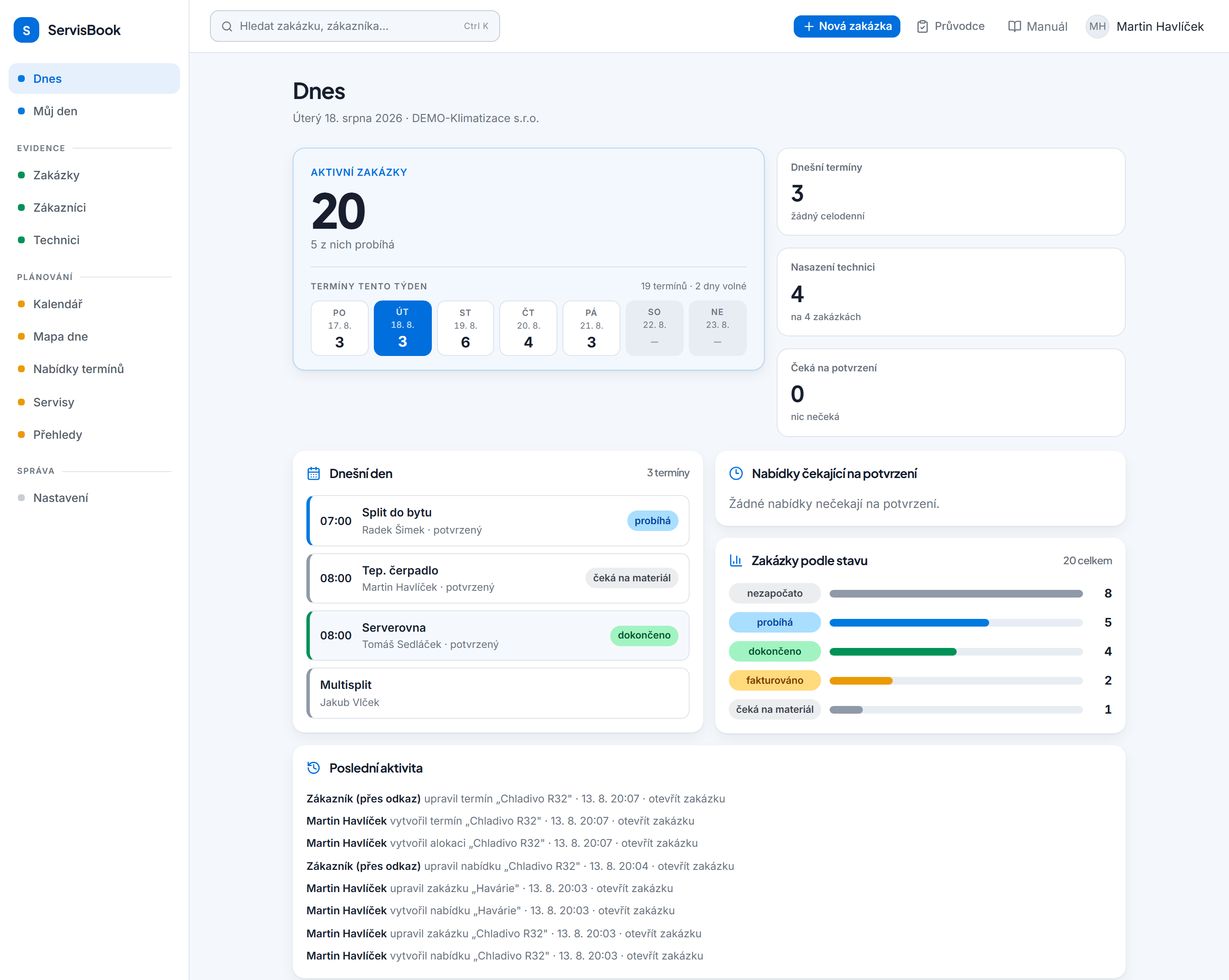
Schematic preview: The record of the chosen date arrives by itself and the order status changes after it.
Contact the customer with one click
The order header shows the customer with a phone number you can dial straight from your phone and an e-mail address that opens your mail.
- The customer card shows all their orders together.
- Tags such as service, installation, project or complaint split the list of orders.
- Text search works even without diacritics – a word typed without accents finds the accented one.
- You filter the order list by appointment date and sort it by the next visit.
Schematic preview: People, skills and their workload in one place.
Related features
Customer equipment with inspection intervals. The overview shows what is due and what is overdue.
Signed handover reportA PDF handover report from the job, even in your company's own form layout. The customer signs with a finger on the phone.
Mobile for techniciansThe technician opens a browser, sees their day, starts work and logs the tasks performed.
Frequently asked questions
How much do I have to fill in when creating an order?
A name and a customer. Everything else – description, status, internal number, tags – is optional and you add it when you know it.
Can we delete an order?
An empty order without appointments and notes, yes. As soon as it has a history, it can only be archived, so the record of the work cannot be lost by accident.
Will a technician see all orders?
A technician sees their company's orders but does not change their content. In My day they can start and finish work and log the tasks done. Order management is reserved for administrators.
Keep orders in one place
Create your first order and watch everything that collects on it.
Free trial →