The whole team and the whole month on one screen
The Technician plan is a Calendar mode: technicians in rows, 35 days in columns. You create an assignment by dragging across cells, move it in one motion and the app warns you about a conflict before saving.
Weekends are shaded, absences hatched and appointments proposed to the customer have a thicker dashed border.
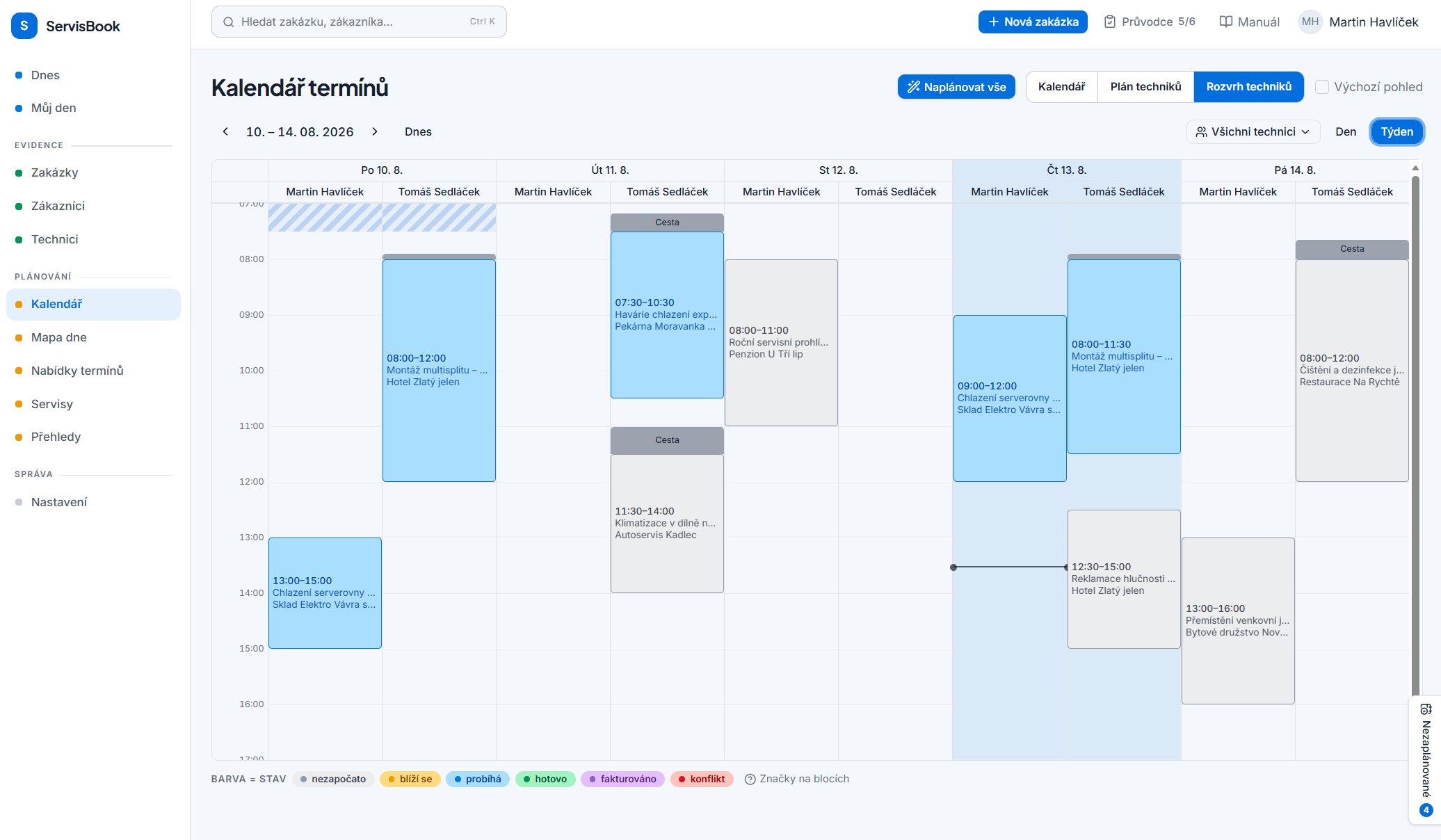
Travel between two orders is counted too
Grey Travel blocks show the estimated travel from home to the first job and then between addresses. The height of the block matches the length of the journey, so the plan shows how much of the day is really usable.
Assignment with one drag
Dragging across an empty area creates a new appointment and in the New appointment dialog you add the order. Without a mouse or on a touch screen you use the New appointment button above the board.
- A one-day assignment is for the whole day, or for hours from–to.
- A multi-day assignment holds whole days and is drawn on the board as a continuous bar.
- Assignments are moved by dragging and the change is written to the history.
Schematic preview: a multi-day assignment is created by dragging and becomes a continuous bar on the board.
Conflicts are flagged before saving
When a technician has another appointment, an absence or blocked time in that period, or is already offered to another customer, ServisBook warns you while you are still filling in the form. You can still save the appointment; the decision is yours. An overlap of two assignments then shows in the plan with a red frame.
- The overlap is calculated live from current data and recalculated, so no stale flag is left hanging.
- The administrator enters absences for the whole team. The technician sees them in their plan.
- Appointments proposed to the customer have a thicker dashed border so nobody reschedules them by mistake.
Schematic preview: The “Who is free when” panel under the Technician plan: who, what they can do and when they can.
The month in the Technician plan, hours in the Schedule
The Technician plan shows the days of several weeks ahead, so you can tell from it whether to take on another order. When you put together a specific day hour by hour, you switch the Calendar to the Technician schedule mode. Both modes are views of the same plan.
- Under the Technician plan there is the “Who is free when” panel with a skill filter.
- The full order name and the appointment time are shown in a tooltip over the bar.
- With the Edit placement button you change the technician, date and time of a bar without dragging.
Schematic preview: Monthly view: you recognise a proposed appointment by its dashed border.
Related features
Who is free, who has the required qualification and who is away. You get the answer while still on the phone.
Appointment calendarProposed and confirmed appointments are clearly distinguished. A multi-day installation is one continuous bar.
Appointment offers to customersA link with available days. The customer picks a date, you confirm it.
Frequently asked questions
Does ServisBook use a Gantt chart?
No, and that is intentional. The board shows people and days. Dependencies between tasks and critical paths belong in project tools that a small service company rarely uses.
Can only part of a day be planned in the Technician plan?
Yes. An appointment has a scope of either the whole day or hours with a from–to time, so you enter a morning as 8:00–12:00, for example. The appointment time is shown in a tooltip over the bar.
How do I move an appointment to another day or another technician?
You drag its bar to another day or to another technician's row. On a phone, on a touch screen or without a mouse you use the Edit placement button and change the technician, date and time in the dialog.
Does the Technician plan work on a phone?
Yes, it has its own mobile layout, because 35 columns do not fit on a phone. Appointments are not created or moved there by dragging; the New appointment and Edit placement buttons are used instead.
Try the Technician plan on your own team
Create an account, add technicians and plan next week on your own data.
Free trial →